How to Update Your App License
Apps developed and published by AIx App Labs are distributed exclusively through the Microsoft Store. All payments and licensing are handled securely by Microsoft.
App License and Status
Because your license is managed by Microsoft, AIx App Labs does not have access to your personal payment information or purchase history.
To view your order history or verify your license status, please follow the official instructions provided by Microsoft here: View your Microsoft Store order history
Troubleshooting License Errors
While app licenses usually update automatically, a sync error can occasionally cause premium features—such as Saving, Save As, Printing, or Exporting—to become temporarily unavailable.
If you encounter an error while using these features, we recommend following the manual update steps in the “Syncing Your License Status” section below. Once the license is successfully synced, return to the feature and try again.
Syncing Your License Status
App licenses typically update in real-time via an automated process between Microsoft’s servers and your Windows OS. Occasionally, a license may fall out of sync due to temporary network or server interruptions.
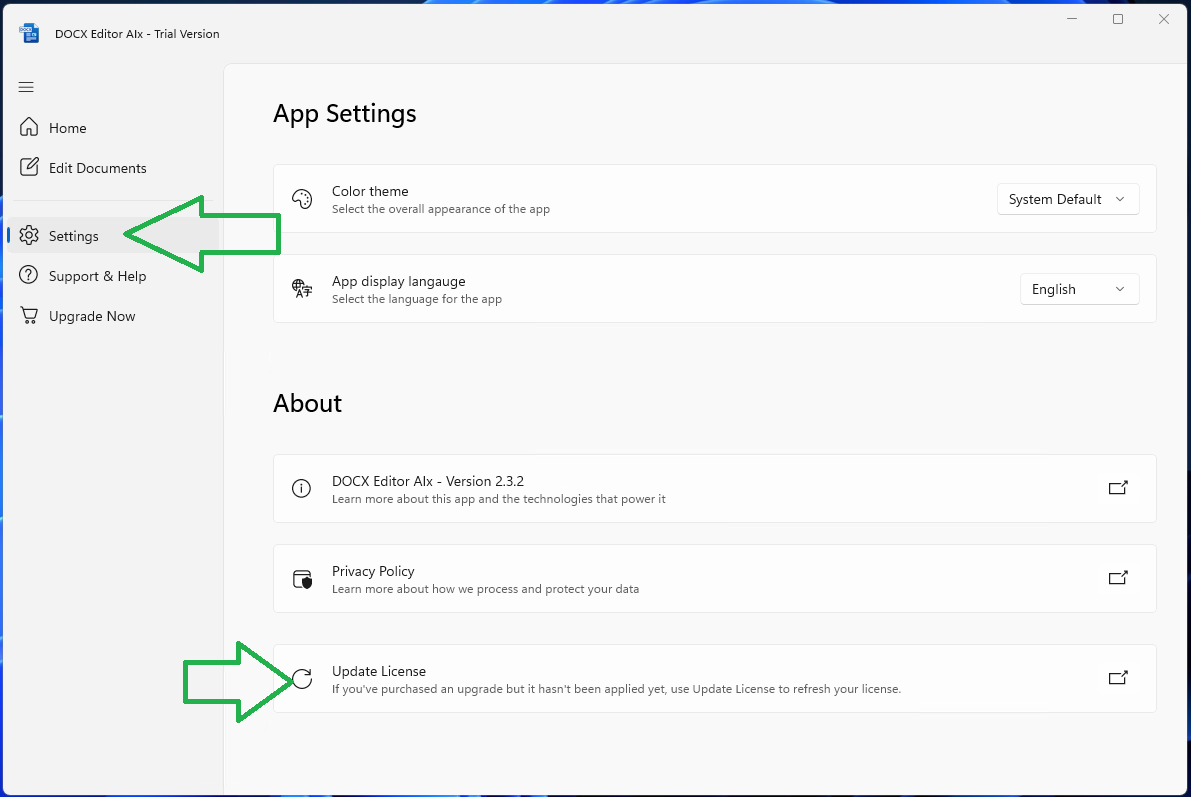
If your app does not recognize your active license, you can manually resolve this using the Update License feature:
-
Open the Settings section of the app.
-
Click the Update License button.
-
The app will immediately request your current status from the Microsoft Store.
-
If a valid license is found: The app will sync and update your status instantly.
-
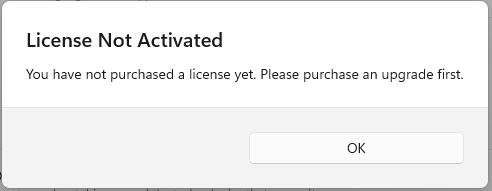
If no license is found: You will receive a notification stating that a valid license could not be retrieved.
Get Help with Licensing
If you continue to experience issues or have further questions, please reach out to our support team at: support[at]aixapplabs.com.